1. Purpose and first steps
GeoExplorer brings Google Earth Engine observations into two workspaces: Time Series Analysis and Sentinel-2 Clustering. The first follows regional vegetation or rainfall through time. The second groups pixels with similar monthly NDVI profiles.
Why combine space and time?
Agriculture and ecosystems vary both from place to place and through time. A map shows where a signal occurs; a time series shows when it changes, how long it persists and whether it recurs. A single image can confuse a normal stage of vegetation development with unusual stress. Regional averages can hide strong local contrasts. Satellite monitoring is therefore most useful when spatial coverage and repeated observations are interpreted together [5].
In agricultural studies, this combination helps distinguish seasonal crop development, differences in growing calendars and persistent differences between fields. Repeated observations help put a low NDVI value in context: it may occur before emergence, after harvest or during a period of limited growth. Vegetation-index time series can also support environmental studies of phenology and ecosystem responses to changing conditions, provided the index and its limitations are understood [6].
| Question | Spatial information | Temporal information |
|---|---|---|
| Where is vegetation behaving differently? | Locate contrasting pixels, fields or landscapes. | Compare the timing, duration and magnitude of seasonal greenness. |
| Is a low value unusual? | Find affected areas and nearby contrasts. | Compare the same season across years and examine persistence. |
| How do rainfall and vegetation relate? | Use a consistent region and consider heterogeneous land cover. | Compare compatible dates, possible response lags and repeated seasonal cycles. |
| Where should field observations be collected? | Locate contrasting profiles and uncertain or unstable areas. | Choose visits that capture key growth stages or periods of change. |
A useful GeoExplorer workflow moves between scales: examine a regional time series, locate spatial contrasts on a monthly or anomaly map, then compare multi-month NDVI profiles within a smaller ROI. Clustering connects these views by grouping pixels according to their seasonal trajectories. It does not use geographic distance as a grouping variable, and similar profiles can occur in separate places.
Example: rainfall, vegetation and seasonal context
Suppose a field has low NDVI in July. If its profile rises in spring and falls after harvest in several years, the July value may be expected. A low value during its usual growth peak calls for a different investigation. Comparing rainfall timing and nearby profiles can help formulate explanations, but rainfall alone cannot establish the cause: crop choice, irrigation, soils, management and observation quality may also matter. This is an illustrative reasoning exercise, not a diagnosis derived from the screenshots.
Why use Google Earth Engine and cloud computing?
Google Earth Engine (GEE) combines a large satellite and geospatial data catalogue with remote computing resources. It lets GeoExplorer request calculations on the hosted archives instead of requiring each user to download, store and process all the source imagery on a personal computer [16].
| Benefit | What it means for your work |
|---|---|
| Less local data handling | Access the supported MODIS, Sentinel-2 and rainfall collections through one workflow. Retrieve useful summaries and map views without maintaining a local archive of every source image. |
| Processing near the data | Filtering, masking and image calculations take place on cloud infrastructure. Your computer mainly provides the interface and displays results, reducing local storage and computing requirements. |
| Space and time at useful scales | Repeated observations can be combined into monthly products and regional histories. This supports comparisons across seasons and years, subject to the dashboard’s area, resolution and period limits. |
| A shared working method | Invited users access the same hosted application in a browser without installing the analysis software. Recording the dataset, region, dates, settings and seeds helps others understand and repeat an analysis. |
For example, a multi-year regional NDVI series can be produced from many source observations while returning a compact table of monthly values. The browser does not need to download all the underlying scenes. This makes it easier to move between a long-term regional overview and a smaller area selected for detailed mapping.
Where does the work happen?
| Component | Role in GeoExplorer |
|---|---|
| Your browser | Collects your choices and displays maps, charts and tables. You download results that you want to retain. |
| Google Earth Engine | Accesses imagery, applies masks, builds monthly products, calculates regional summaries and generates map tiles. Time-series batch exports are queued here; fitted clustering models are also applied to raster data here. |
| GeoExplorer’s hosted Python backend | Runs on Google Cloud Run. It handles access, coordinates requests and performs time-series statistics and clustering model fitting on sampled profiles. Cloud hosting does not mean that every calculation runs inside Earth Engine. |
| Private cloud storage | Holds batch-export results and job records so the application can retrieve completed outputs and reconnect to saved jobs. It is separate from a permanent user project library. |
What cloud computing does not guarantee
Earth Engine has interactive processing for shorter requests and batch processing for larger asynchronous exports. Batch work enters a queue, so a request can be accepted before computation begins [4]. Cloud computing makes demanding workflows practical, but does not guarantee an immediate result or that every operation will be faster than a small local calculation.
Your first analysis
- Open GeoExplorer and enter the access password supplied by the owner. Invited collaborators do not need their own Google Earth Engine account.
- Wait for Backend connected. Choose Time Series Analysis in the top menu.
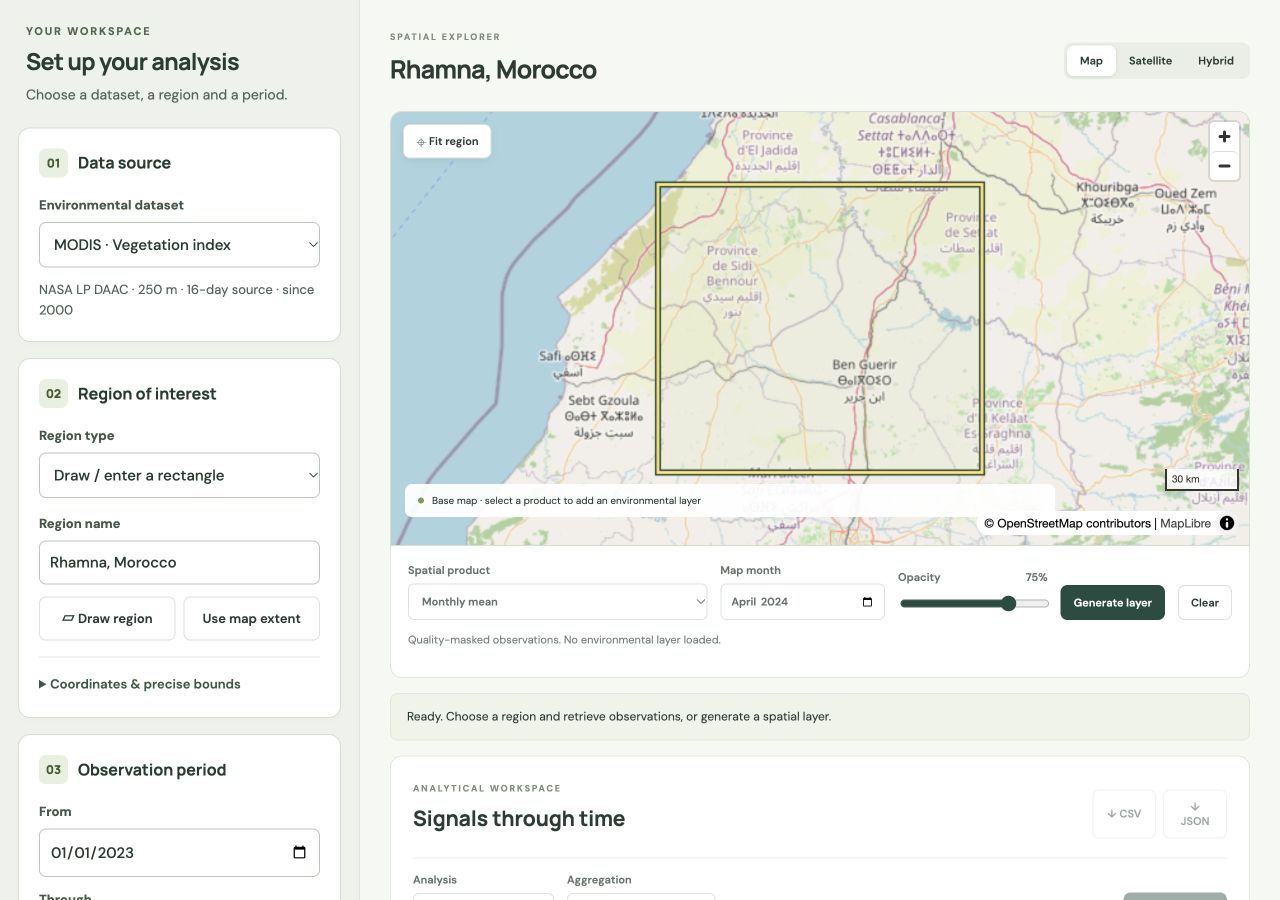
- For a first exercise, select MODIS, keep a modest rectangular region, and choose one or two complete years. Use 250 metres or a coarser processing resolution.
- Select Retrieve time series. Wait for observations to appear in Signals through time, then use Run analysis to aggregate or transform them.
- To explore spatial patterns, select a map month and Generate layer. A time-series retrieval does not automatically create a map layer.
| Area | What you will find |
|---|---|
| Top menu | Switch between Time Series Analysis and Sentinel-2 Clustering. |
| Left panel | Dataset, region, dates or clustering months, resolution and run controls. Scroll within the panel to reach its bottom. |
| Map and controls | Basemap, region outline, fit and zoom, environmental layers. |
| Below the map | Progress messages, charts and tables, cluster profiles, uncertainty and stability results. |
2. Choose data and processing resolution
| Dataset | Source and coverage | Dashboard observation |
|---|---|---|
| MODIS NDVI | MOD13Q1 v6.1; 250 m; 16-day composites from February 2000. | Monthly arithmetic mean of quality-masked NDVI, then a regional mean. |
| Sentinel-2 NDVI | Harmonized surface reflectance; red and near-infrared bands at 10 m; available from March 2017, with early coverage gaps. | Monthly mean of cloud-masked NDVI, then a regional mean. |
| CHIRPS precipitation | Daily estimates, 0.05° (about 5.5 km); from 1981; land coverage approximately 50°S to 50°N. | Daily rainfall summed within each month, then averaged over the region, in mm. |
NDVI is dimensionless: (near infrared - red) / (near infrared + red). It describes a spectral vegetation signal, not yield or biomass directly. MODIS and Sentinel-2 differ in pixel size, acquisition timing and masking, so their NDVI values need not agree exactly.
MODIS uses SummaryQA values 0 and 1 and applies the 0.0001 scale factor. Sentinel-2 excludes scenes with at least 80% cloud cover and masks SCL classes 0, 1, 3, 8, 9, 10 and 11. Cloud masking can remove pixels even when a month contains source images.
Source pixels versus calculation grid
Processing resolution controls the calculation grid. A larger number means a coarser grid and less work. Choosing 10 metres for MODIS does not create new 10-metre information. Start near the source resolution for small regions; use a coarser grid for countries. Country selection can increase the time-series resolution automatically to respect the pixel limit.
Source documentation: MODIS [1], Sentinel-2 [2] and CHIRPS [3], linked in section 14. Record the dataset, region, period and processing resolution with exported results.
Back to contents ↑3. Define a country or rectangle
Full country
- Set Region type to Full country and choose a country.
- Wait for the boundary to load. Check the outline, region name and reported area.
- Use Fit region if you have moved away. Calculations use the country geometry, not its enclosing rectangle.
Draw or enter a rectangle
- Choose Draw / enter a rectangle, then Draw region.
- Drag from one corner to the opposite corner, or click the two corners in sequence. Press Escape to cancel drawing.
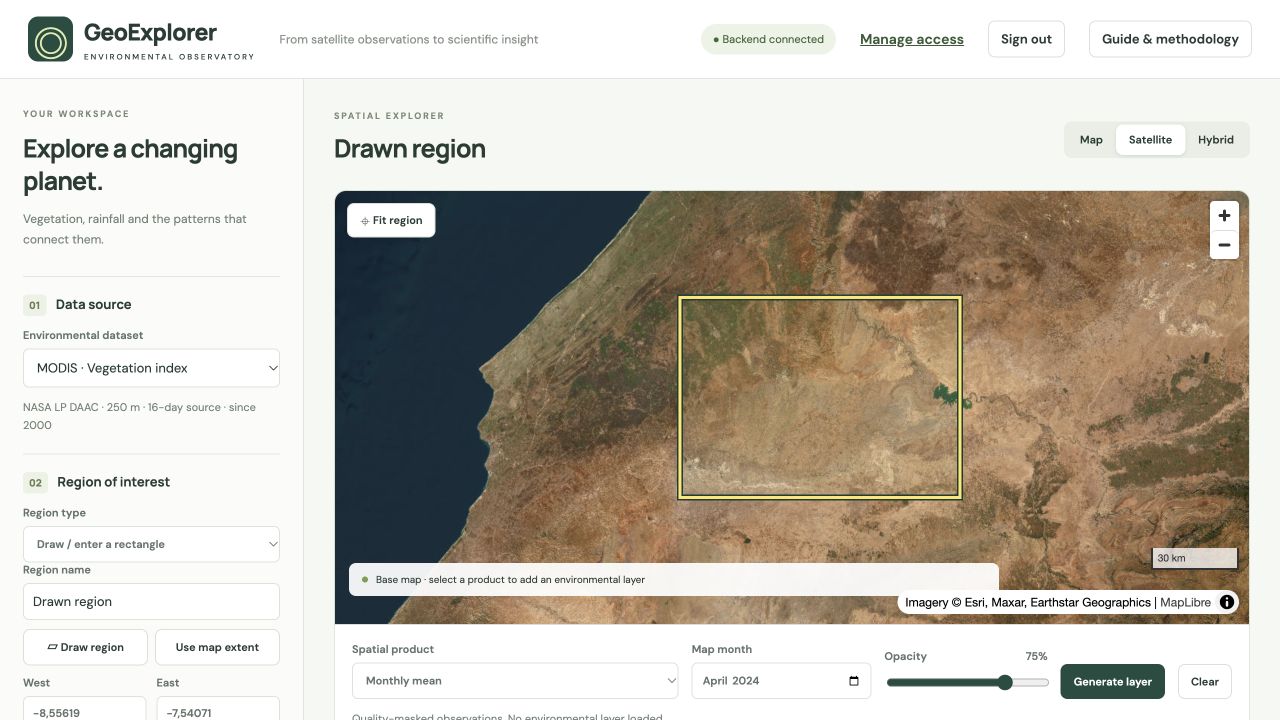
- Check the yellow outline with its dark border. Rename the region if useful.
- For exact bounds, expand Coordinates & precise bounds, enter west, east, south and north in decimal degrees, then select Apply bounds. Alternatively choose Use map extent.
West must be smaller than east, and south smaller than north. Negative longitude is west of Greenwich. Rectangles crossing the date line are not supported. Map tilting and rotation are disabled to keep selection straightforward.
Country boundaries use geoBoundaries ADM0 geometry, simplified to about 1 km. The Morocco selection combines MAR and ESH, matching the macOS app. Inspect the intended study extent; this is an application convention for analysis.
4. Generate and read a map
- Choose a dataset and region in Time Series Analysis.
- Below the map, select Spatial product. Set Map month, or the relevant RGB months and observation period.
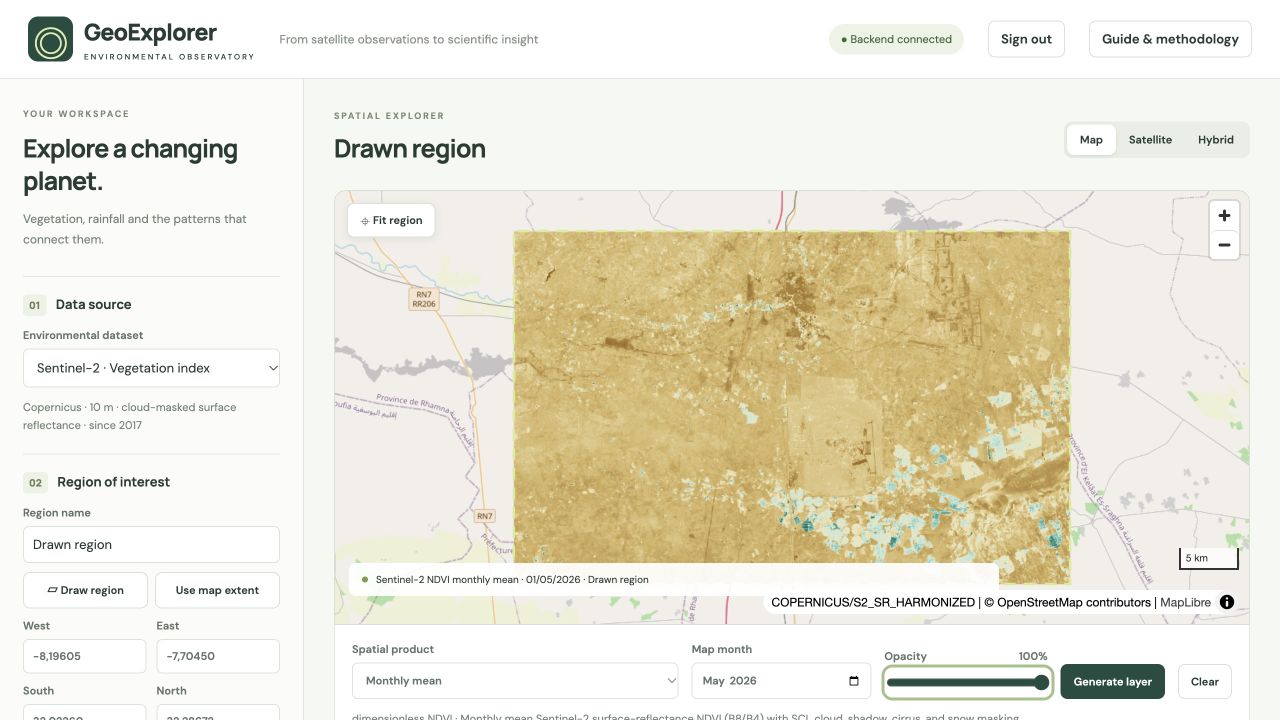
- Select Generate layer and wait for Layer ready. Use Opacity to reveal the basemap beneath the layer.
- Switch Map, Satellite or Hybrid for context. Clear removes the environmental layer; Fit region returns to your selected area.
| Spatial product | Meaning |
|---|---|
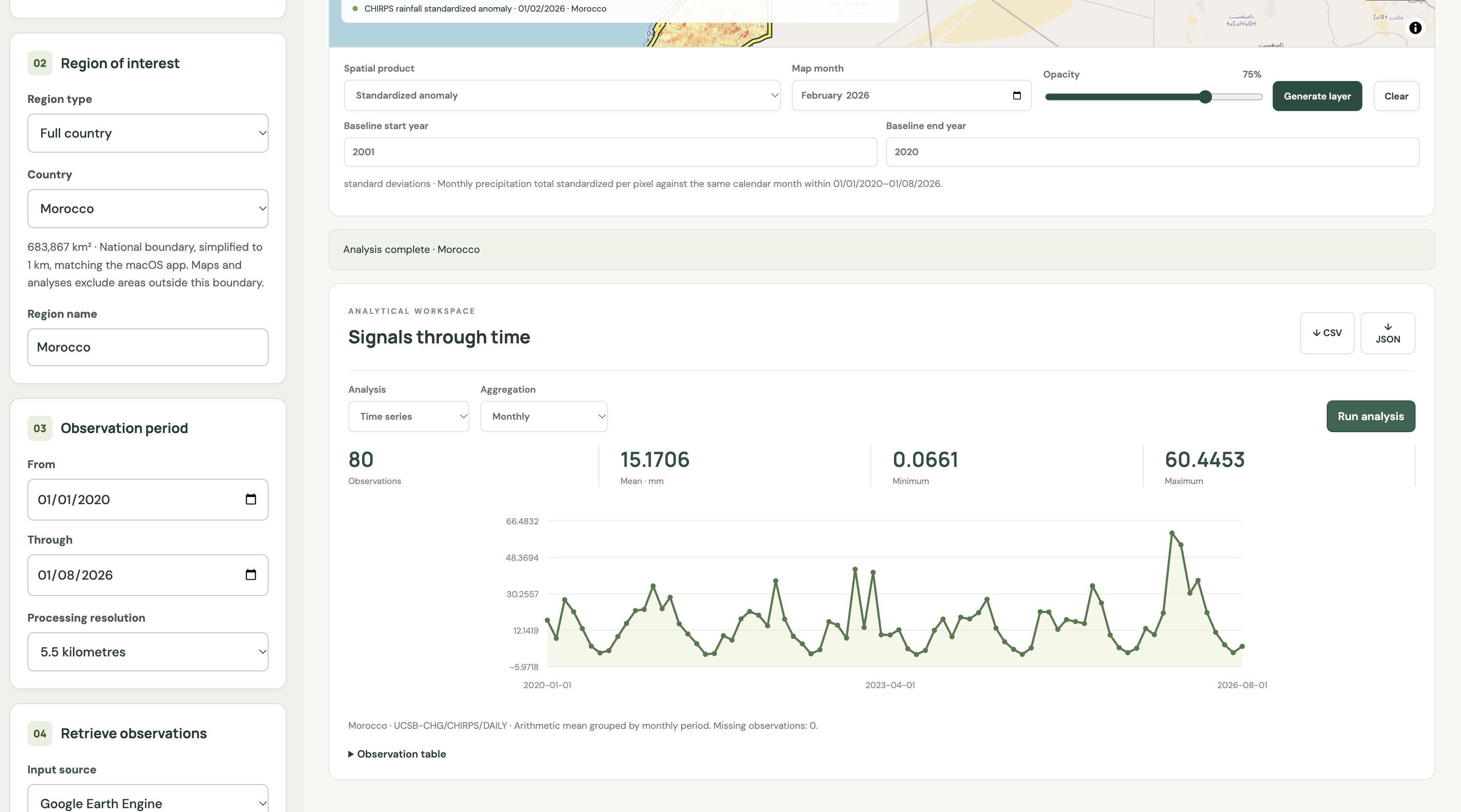
| Monthly mean / monthly rainfall | NDVI is the monthly mean. For CHIRPS, the calculation is the monthly rainfall total even if the menu says Monthly mean. |
| Period minimum / maximum | NDVI: extremes among masked source images within the observation period. Rainfall: extremes among monthly totals. |
| Standardized anomaly | Selected monthly value minus the same-calendar-month baseline mean, divided by its standard deviation, at each pixel. |
| RGB · three months / monthly anomalies | Three selected months assigned to red, green and blue. This is a false-colour composite, not a cluster classification. |
| Sentinel-2 · true colour / infrared | Reflectance composites available only with Sentinel-2 selected. Useful for visual context rather than quantitative NDVI interpretation. |
Map month is independent of the time-series dates for monthly products. Period minimum and maximum use the observation period. Transparent pixels are missing or masked, not zero. Read the layer caption and methodology before interpreting a colour.
Multitemporal false colour: the Yaqui Valley, Mexico
Around Ciudad Obregón in Sonora, northwestern Mexico, the irrigated Yaqui Valley offers a striking example of agricultural variation across both space and time. Near the city, the Campo Experimental Norman E. Borlaug (CENEB) is an important base for CIMMYT wheat improvement. Work by Norman Borlaug, Mexican researchers and local farmers in this region helped develop the high-yielding, disease-resistant wheats associated with the Green Revolution. CENEB has supported research on yield potential, heat and drought tolerance, and disease resistance [14].
The location is also associated with shuttle breeding: growing successive wheat generations in contrasting Mexican environments to accelerate improvement and select broadly adapted material. Borlaug used this approach to obtain two generations in a year [15]. This history makes the valley a useful setting for discussing crop development, environmental variation and repeated observations. The screenshots show the wider agricultural landscape; they do not identify individual CIMMYT experiments.
Across the 2023-2024 growing season
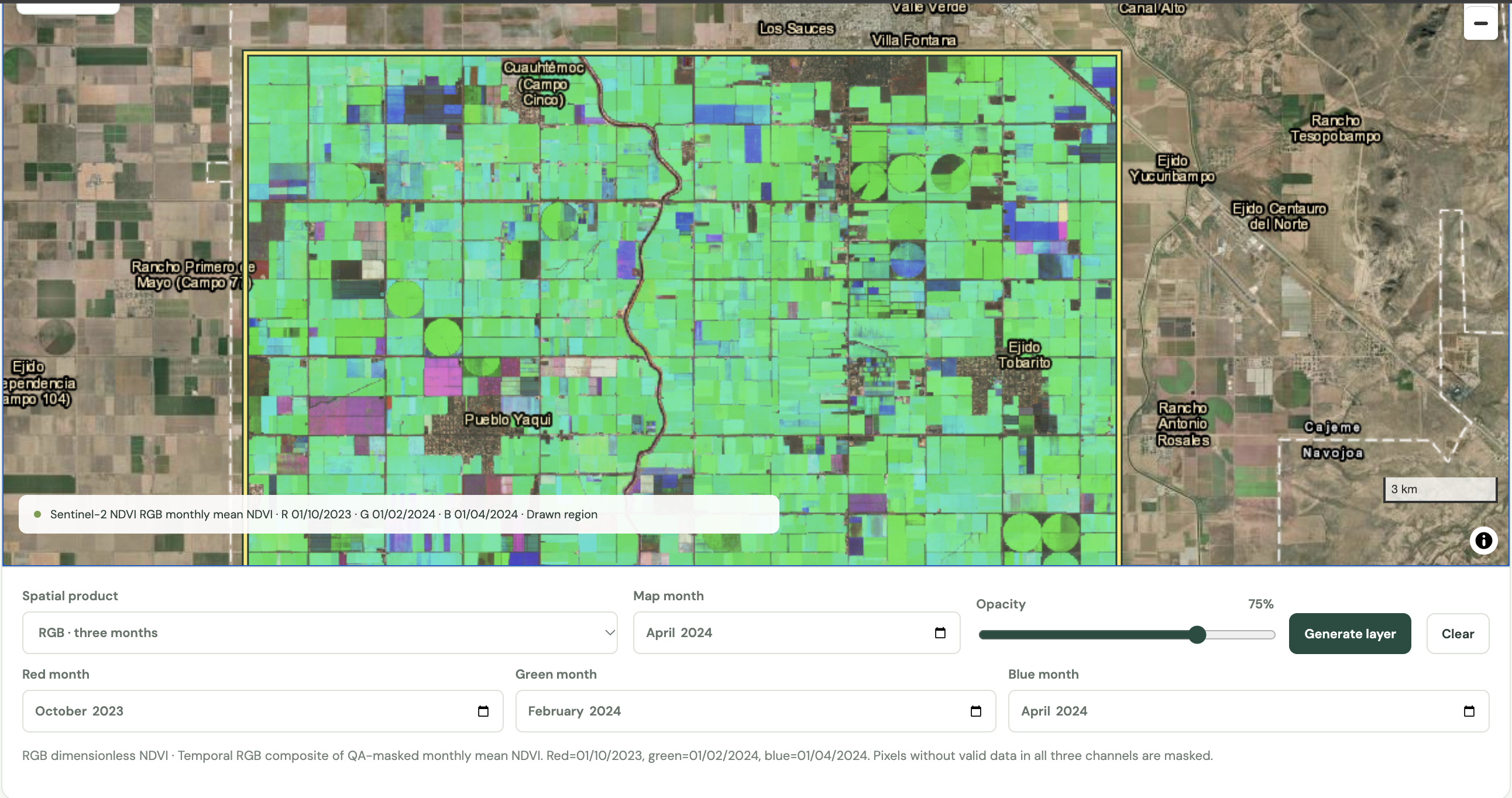
This composite helps locate differences in vegetation development through the season. Compare fields with contrasting colours, then inspect their monthly profiles to distinguish the timing of green-up, sustained vegetation and decline. The three snapshots do not establish exact sowing, peak or harvest dates, and individual fields may follow different crop calendars.
Vegetation near the seasonal peak across consecutive years
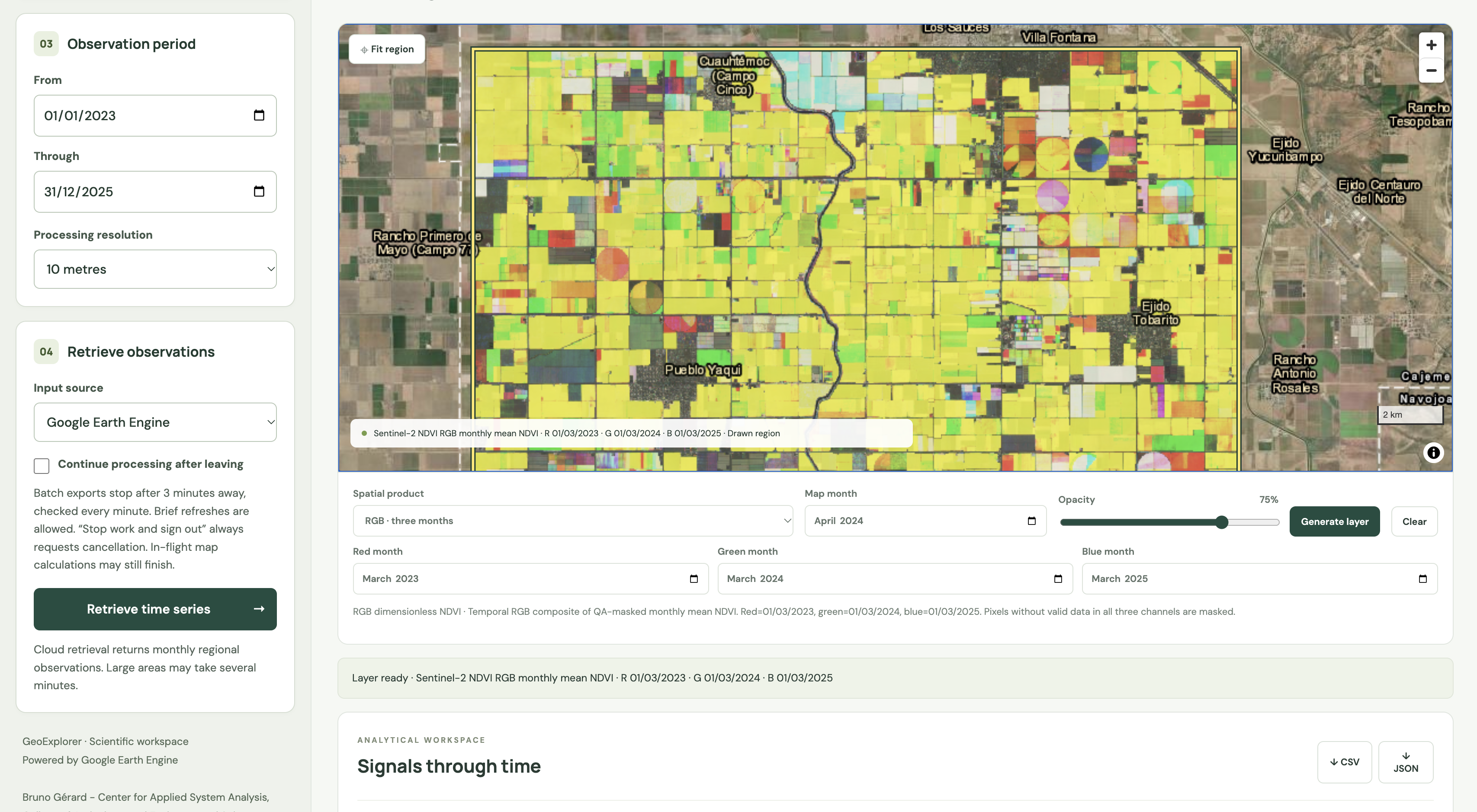
The March comparison separates year-to-year contrasts from the deliberate within-season date changes in the first example. It compares a fixed calendar month, not each field’s measured annual maximum NDVI. Peak timing can shift between years and crops, so use the full time series to check whether a March difference reflects vegetation magnitude, development timing or both.
- Select Sentinel-2 NDVI and draw a region in the Yaqui Valley near Ciudad Obregón.
- Choose Spatial product → RGB · three months. For the growing-season example, assign October 2023 to red, February 2024 to green and April 2024 to blue.
- For the consecutive-year comparison, assign March 2023 to red, March 2024 to green and March 2025 to blue.
- Select Generate layer. The three channel months define the RGB image; the separate Map month value is not used. Compare the composites with monthly profiles or clustering of a longer sequence.
Country examples: vegetation and rainfall anomalies
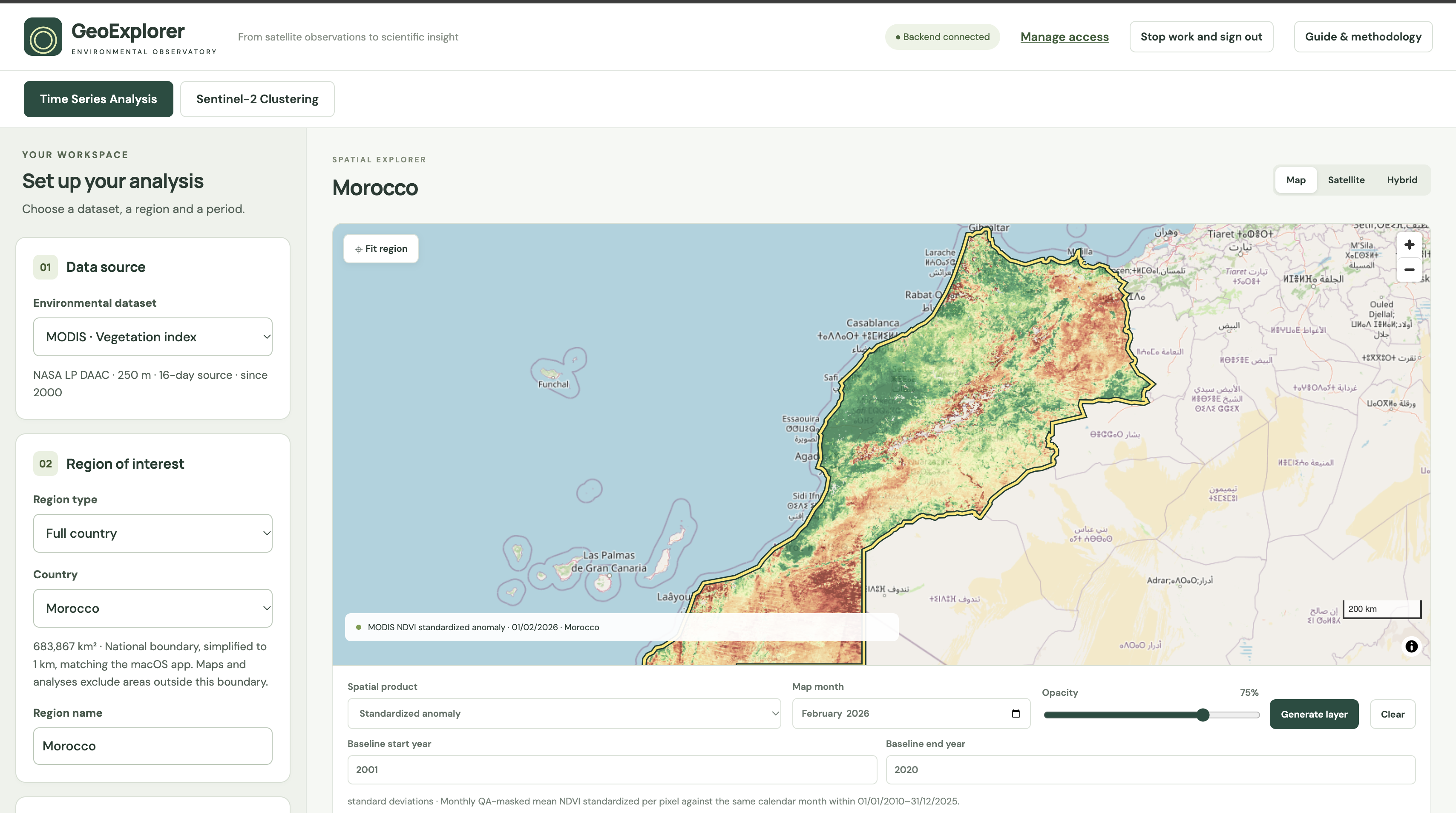
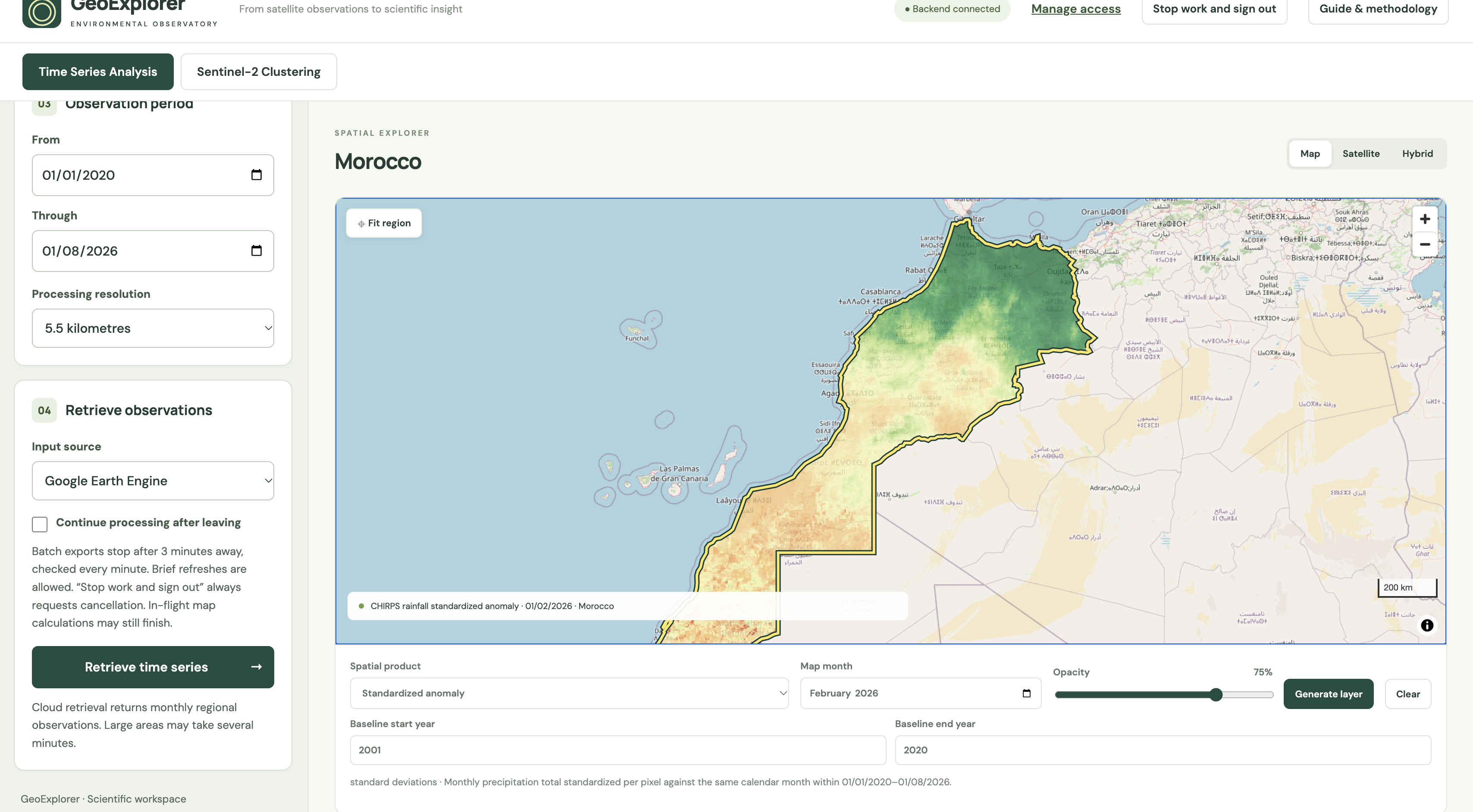
5. Retrieve observations and manage cloud work
- Choose dataset, ROI, From/Through dates and processing resolution.
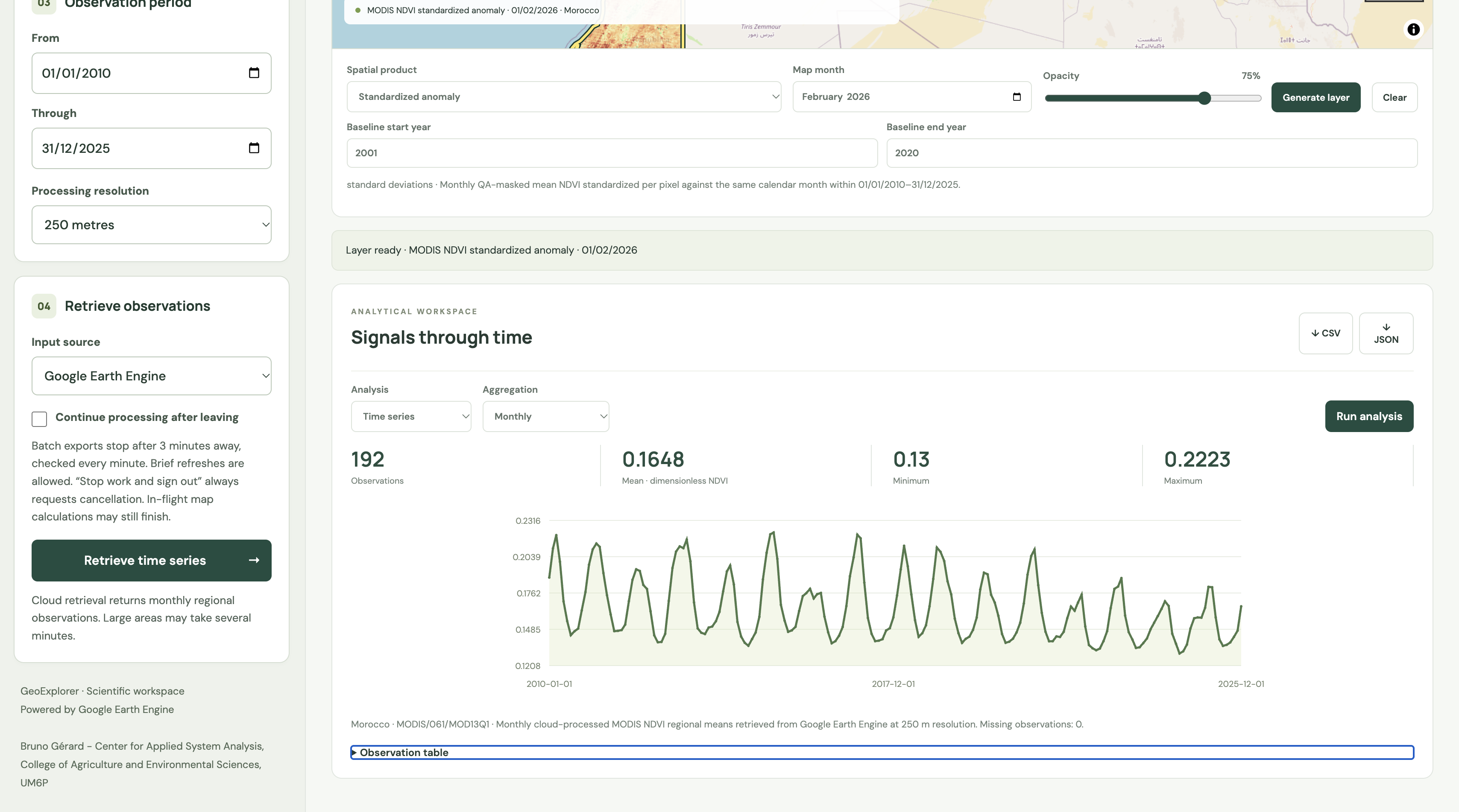
- Keep Google Earth Engine as Input source and select Retrieve time series. Previous charts, statistics, tables, downloads and the environmental layer clear immediately.
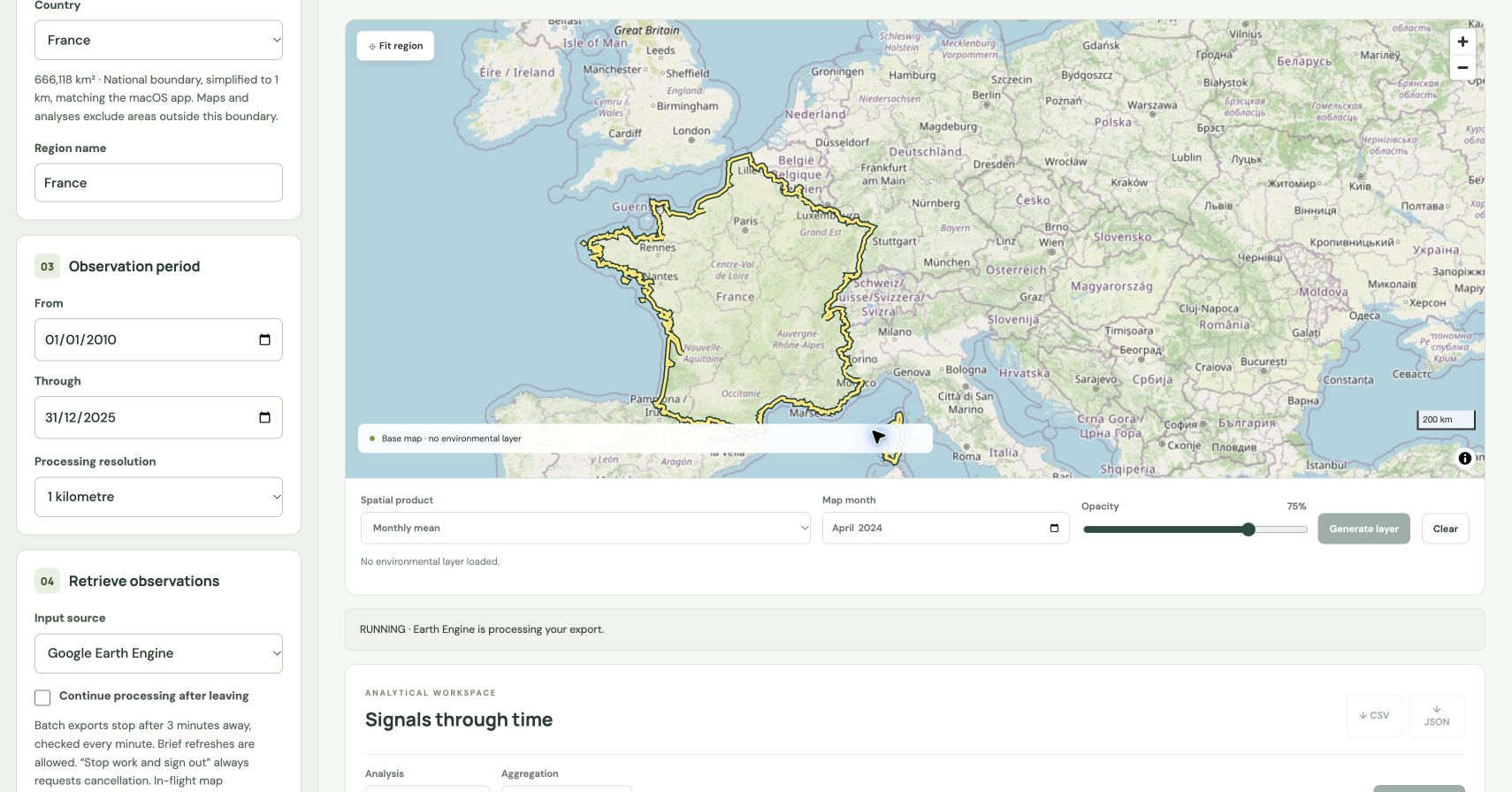
- Read the status below the map. Queued and RUNNING mean results are not yet ready. The empty workspace is intentional while retrieval is pending.
- When observations arrive, the chart, metrics and table populate. Export them before starting another retrieval if you need to retain that result.
Cancel, leave or continue
Cancel cloud job sends a cancellation request. CANCEL_REQUESTED means Earth Engine has not yet confirmed that it has stopped. Repeated clicks do not accelerate cancellation. GeoExplorer keeps the export slot occupied until a terminal state is confirmed; cancellation is not instantaneous [4].
By default, a batch becomes eligible for automatic cancellation after 3 minutes without a visible dashboard heartbeat, checked every minute. Background tabs, closing the browser or losing connectivity can trigger this. A brief refresh is allowed. Another visible dashboard tab in the same workspace can keep the work active.
Check Continue processing after leaving before leaving if you want the batch to continue. Stop work and sign out always requests cancellation of that workspace's export. Already-started map calculations may still finish; clustering checks for stopping between processing stages.
6. Analyse and export a time series
Time series and anomalies
After retrieval, choose Time series, select Monthly, Seasonal or Annual, then Run analysis. Aggregation calculates arithmetic means of available observations. Seasonal means use calendar quarters: January-March, April-June, July-September and October-December. Annual means average available months; missing months are not filled.
Anomalies use the mean of the entire retrieved or imported series. Absolute subtracts that mean; Percentage divides the difference by the mean and multiplies by 100; Standardized divides the difference by the sample standard deviation. These chart anomalies are not calendar-month climatological anomalies and differ from the spatial anomaly map.
Compare two series
- Retrieve the first dataset. Choose Correlation and select Use current observations as Series B.
- Retrieve the second dataset as Series A. Saved Series B is retained when old results clear. Use the same ROI and compatible dates for a meaningful comparison.
- Choose Pearson for linear association or Spearman for rank association. Set Lag (observations), then Run analysis.
- Read the coefficient, p-value and matched sample size together. Correlation does not establish causation; seasonal structure and serial dependence can affect interpretation.
The application first matches identical dates. A positive lag pairs earlier A observations with later B observations; a negative lag reverses that direction. Lag counts matched observations, not necessarily calendar months when data have gaps. At least three pairs and non-constant series are required.
CSV import and downloads
Choose Paste / import observations to load two columns: YYYY-MM-DD,value, with an optional date,value header. Dates must be unique and values numeric. Choose the dataset and region metadata to match the imported values. Imported observations are not independently verified.
date,value
2024-01-01,0.42
2024-02-01,0.51
2024-03-01,0.47
CSV downloads the currently displayed observations or correlation summary. JSON also retains metadata, methodology and summary fields. Export the original monthly result before replacing it with another analysis if you want both. Map tiles and GIS rasters are not included in these downloads.
Read the time-series examples
7. Select monthly NDVI variables
- Open Sentinel-2 Clustering in the top menu. Select a country or rectangle.
- Choose months lets you add or remove dates, with 3-12 distinct months. Choose dates that represent the seasonal differences you want to study.
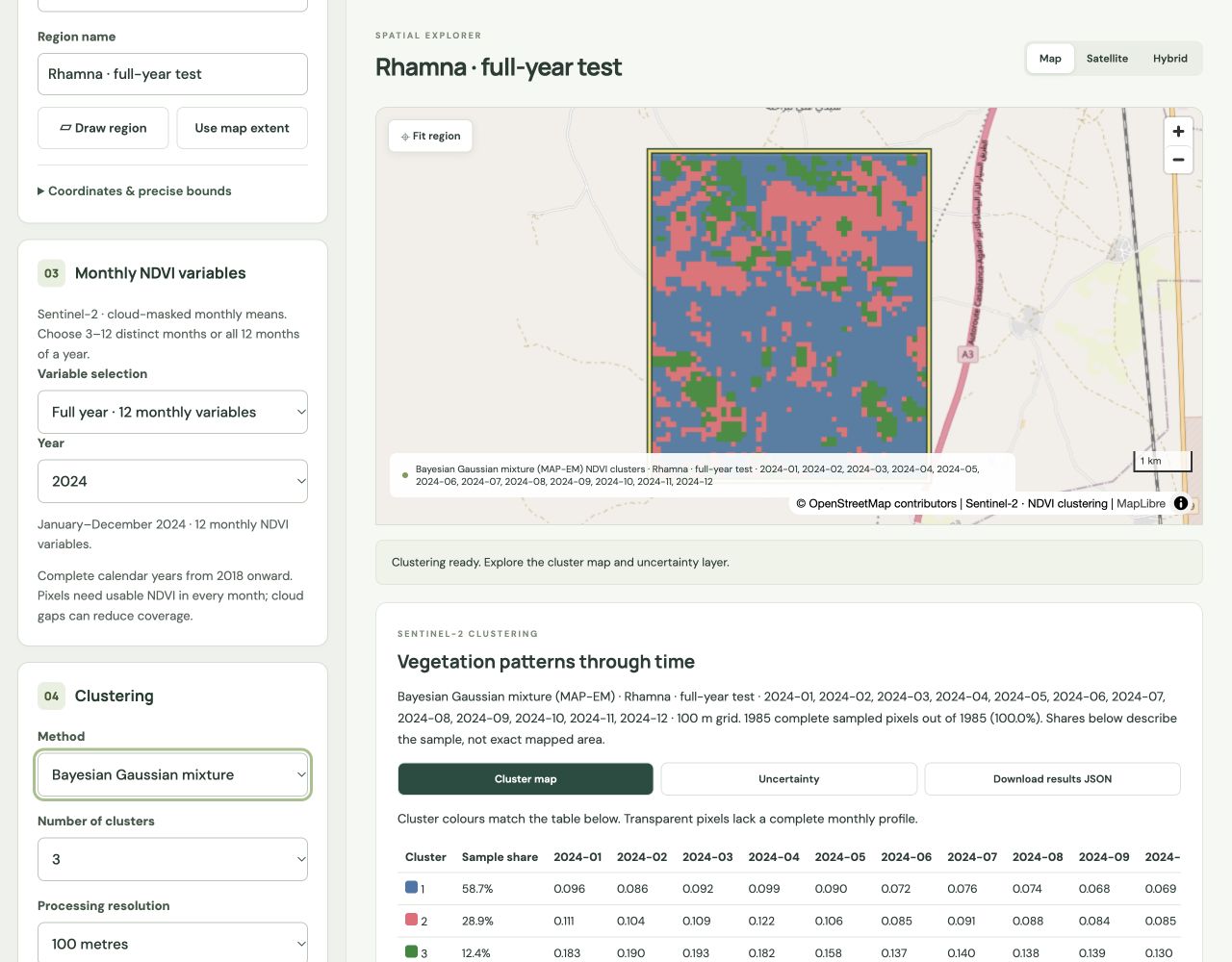
- Alternatively select Full year · 12 monthly variables and choose a complete year from 2018 onward. January through December become the 12 inputs.
- Choose a method, 2-8 clusters and processing resolution. Start with a small ROI at 100 metres to learn the workflow, then adjust for your study.
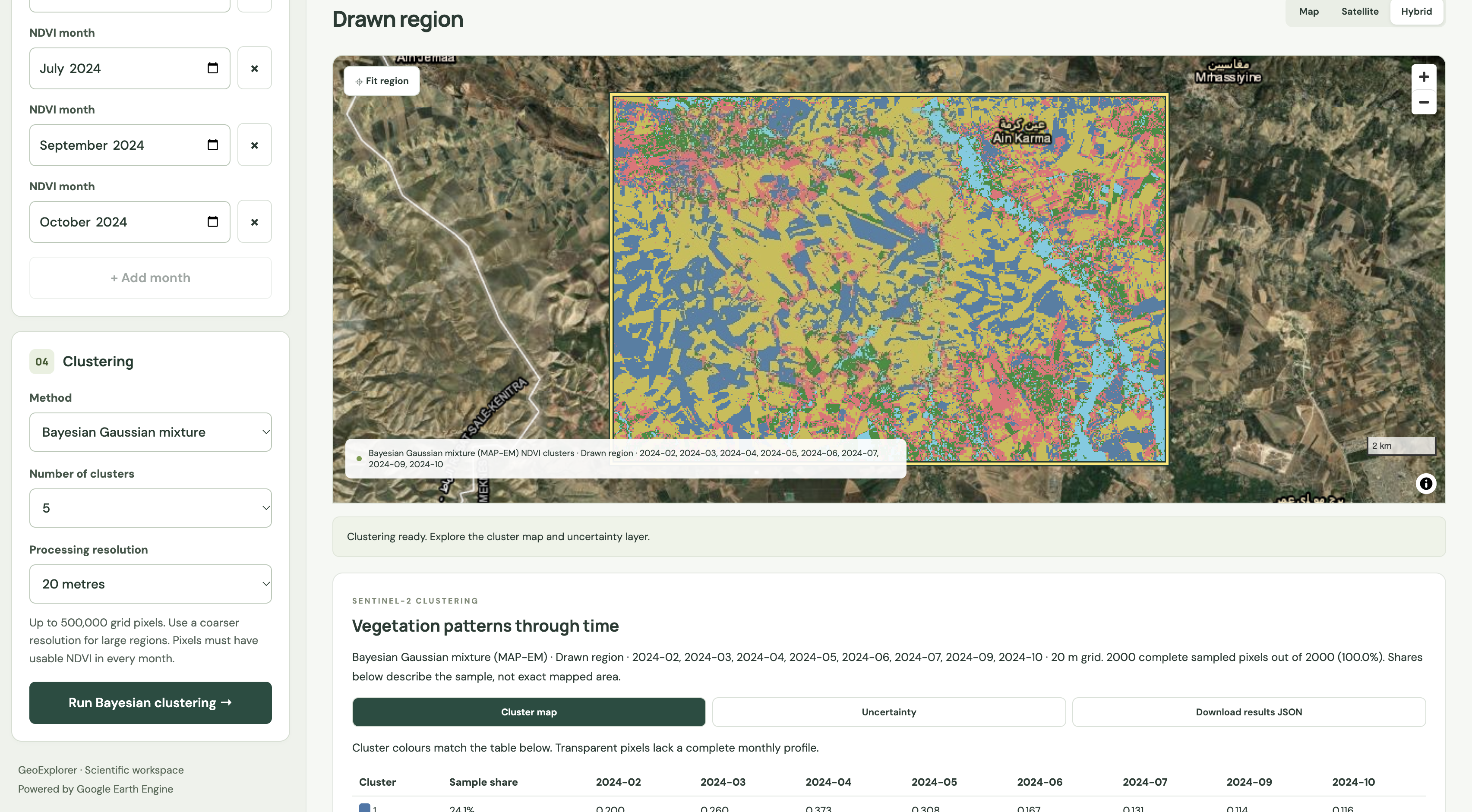
- Select Run clustering and wait for Clustering ready. Inspect the map, complete-sample fraction and monthly NDVI profiles below it.
Each pixel needs usable NDVI in every selected month. Adding months can reduce valid coverage. Transparent areas lack a complete profile. If too few pixels remain, use different months, enlarge the ROI or reduce the number of clusters.
The model uses about 2,000 sampled pixels, retaining complete profiles, then predicts across the valid ROI grid. Inputs are scaled using each month's median and interquartile range, with standard-deviation fallback. The ordinary run uses seed 42; user-selected seeds are provided through stability analysis.
8. Understand and compare clustering methods
Clustering is an unsupervised description of similarity: no crop or land-cover labels are supplied during fitting. GeoExplorer offers four ways to summarize the same monthly NDVI inputs. They can produce different maps because they define representative profiles and cluster boundaries differently. The scientific references explain the method families; the settings below describe this dashboard implementation.
8.1 What the algorithms receive
For each complete pixel, the input is a vector of 3-12 monthly NDVI values, ordered by date. A February-April-July selection is a three-dimensional profile; a full calendar year is a 12-dimensional profile. The columns preserve timing: a spring peak and an autumn peak are different patterns even if their annual means match.
Each run draws about 2,000 pixels from the ROI, retains complete profiles and scales each month across that sample: z = (NDVI - monthly sample median) / monthly sample IQR. A standard-deviation fallback, with a small positive floor, handles nearly constant months. These are across-pixel adjustments within each month, not normalization of each pixel to its own annual mean. Both the level and timing of NDVI can therefore influence grouping.
The geographic prediction grid is fixed in EPSG:3857 at the selected nominal resolution. Every valid pixel is assigned using the fitted model and the same scaling as the training sample. Coordinates and neighbourhood labels are not clustering inputs. Pixel count and profile shares reported in the ordinary result describe the training sample, not an equal-area census of the map.
| Method | Representative | Main output |
|---|---|---|
| Bayesian Gaussian mixture | Fitted mean and diagonal variance for each component. | Hard class plus model-based membership uncertainty. |
| PAM | An observed monthly NDVI profile (medoid). | Nearest-medoid hard class. |
| CLARA | Observed medoids selected through repeated sampled PAM fits. | Nearest-medoid hard class from the retained fit. |
| SOM | A 5 × 5 grid of learned prototypes, then grouped. | A prototype grid and a geographic hard-class map. |
8.2 Bayesian Gaussian mixture: overlapping profile groups
A Gaussian mixture represents the feature distribution as a weighted combination of K components. Each component has a typical profile and a spread around it. Membership probabilities express relative support for those fitted components; a hard class selects the largest probability. Expectation-maximization alternates membership calculations with parameter updates. Priors can regularize estimates, particularly for small or poorly separated components [7].
GeoExplorer uses a regularized maximum-a-posteriori EM fit (MAP-EM), initialized by k-means. K is chosen by the user and stays fixed. The model has diagonal covariance: each component estimates a variance for every month but does not fit cross-month covariance terms. Its symmetric Dirichlet weight prior has alpha = 1.1. Normal-inverse-gamma regularization uses mean strength 0.01, variance shape 2.0 and a variance scale based on the training-sample global variance. Fitting is capped at 200 iterations.
Practical use: inspect components whose mean profiles differ in peak timing, season length or greenness level, then use Uncertainty to locate ambiguous assignments. The normalized entropy is H = -sum(p_k × log(p_k)) / log(K): it approaches 0 when one membership dominates and 1 when memberships are equal. The displayed cluster profile is the mean NDVI of sampled pixels assigned to that cluster; it is not itself an observed medoid.
8.3 PAM: representative observed profiles
Partitioning Around Medoids seeks K observed profiles that keep the sum of distances to the nearest representative small. Unlike a mean prototype, a medoid is a profile actually present in the fitting sample. The classic algorithm builds an initial set, then improves it by swapping medoids with other observations. It finds a local solution rather than guaranteeing the global optimum [8].
GeoExplorer uses ordinary Euclidean distance in the scaled monthly feature space. Its objective sums distances, not squared distances. It fits at most 600 complete sampled profiles, chosen with the run seed when more are available. Greedy BUILD is followed by best-improving SWAP, capped at 100 iterations; the cached SWAP calculation follows the FastPAM1 decomposition [10]. Final prediction assigns all complete ROI pixels to the nearest retained medoid.
Practical use: choose PAM when an observed seasonal profile is a useful representative. The JSON records medoid profiles, while the visible monthly table summarizes the mean NDVI of assigned sample members. These are different summaries. Medoids reduce the influence of extreme observations relative to a squared-distance mean objective, but outliers, masking and the selected dates still matter.
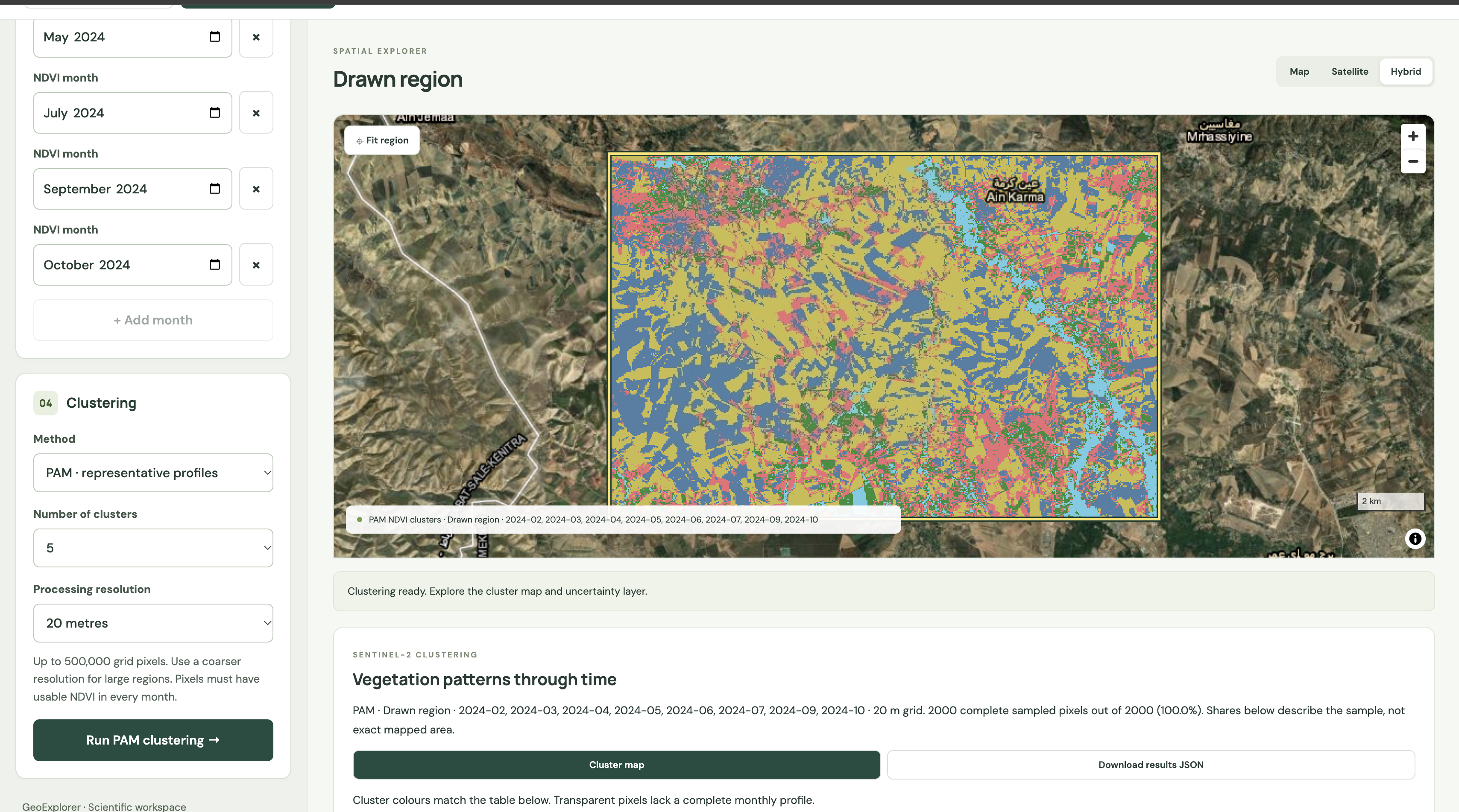
8.4 CLARA: sample repeatedly, evaluate more broadly
Clustering Large Applications makes medoid fitting more economical by running PAM on smaller subsamples and evaluating candidate medoids on a larger dataset. The retained candidate minimizes the evaluation cost. This separates the cost of searching for medoids from the cost of assigning the evaluation observations [9].
In GeoExplorer, CLARA uses subsamples of up to 200 complete profiles. If more than 200 profiles are available it evaluates five candidates; otherwise it performs one fit on the available sample. Later subsamples retain the best medoids found so far. Candidate quality is the sum of Euclidean distances to the nearest medoid across the complete larger training sample, usually about 2,000 profiles. The final medoids then classify the ROI raster.
Practical use: CLARA offers a sampled medoid alternative to PAM, useful when you want a broader evaluation sample while keeping each fitting problem small. It does not eliminate the cost of preparing Sentinel-2 monthly composites. It is not guaranteed to be faster end-to-end or better than PAM for a particular ROI.
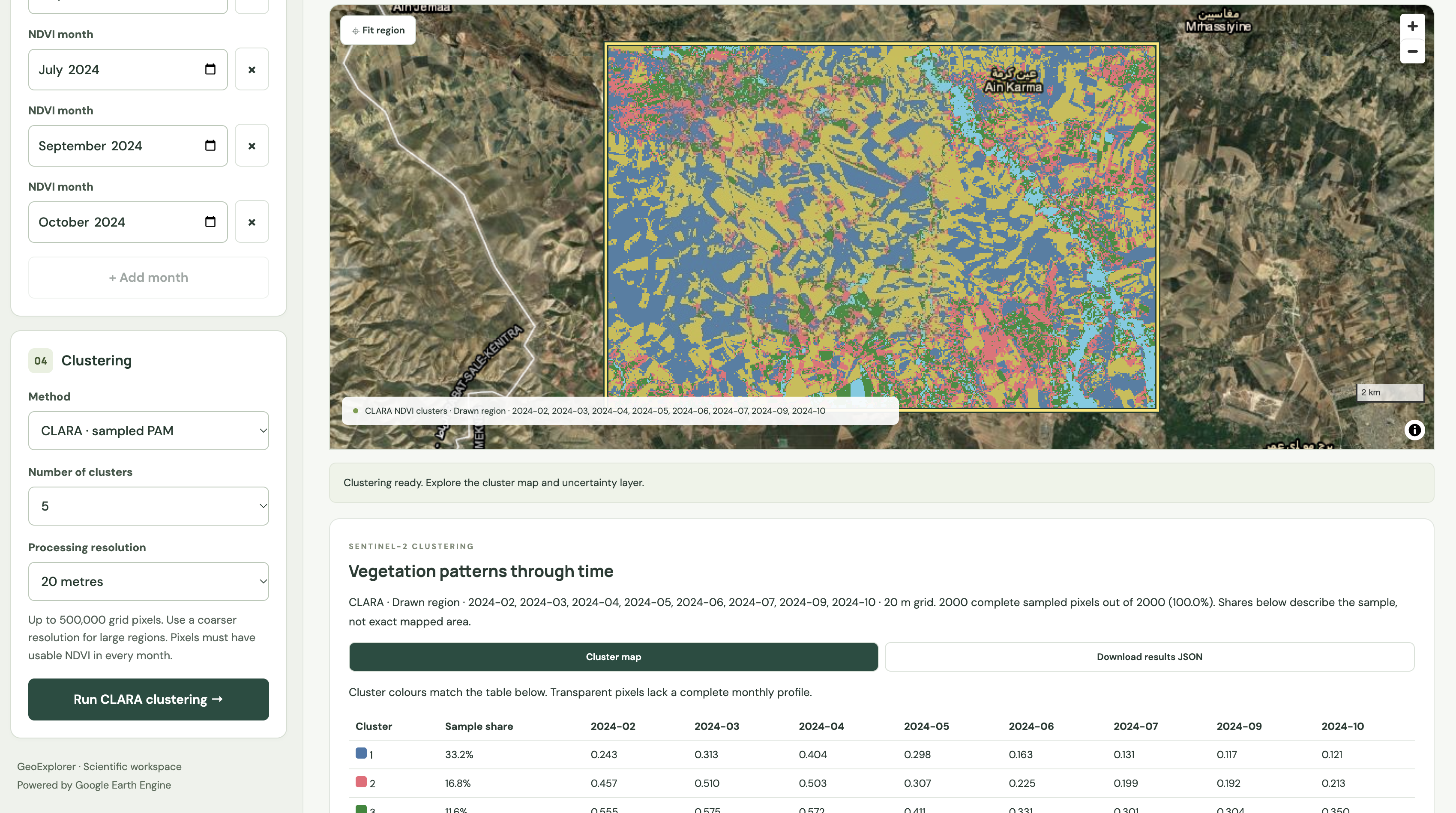
8.5 SOM: organize profiles before grouping them
A self-organizing map learns prototype vectors arranged on a low-dimensional lattice. Training updates a best-matching unit and its neighbours, encouraging nearby units to describe similar profiles. The lattice represents similarity, not physical geography; its orientation is arbitrary [11].
GeoExplorer uses a fixed rectangular 5 × 5 lattice (25 units) and 80 batch training epochs. Prototypes start from seed-selected observations. A Gaussian neighbourhood shrinks geometrically from 2.0 to 0.3 grid units. Each batch update averages observations with neighbourhood weights. The resulting 25 prototypes are grouped into the requested K classes using Ward hierarchical clustering, which merges groups to limit increases in within-group variation [12].
All 25 units have equal weight during Ward grouping, including units with no sampled hits. Each ROI pixel is mapped to its closest prototype and receives that prototype group. Thus the 25 SOM units and the final 2-8 geographic classes are different objects; a class can contain several units, and some groups can have no sampled members.
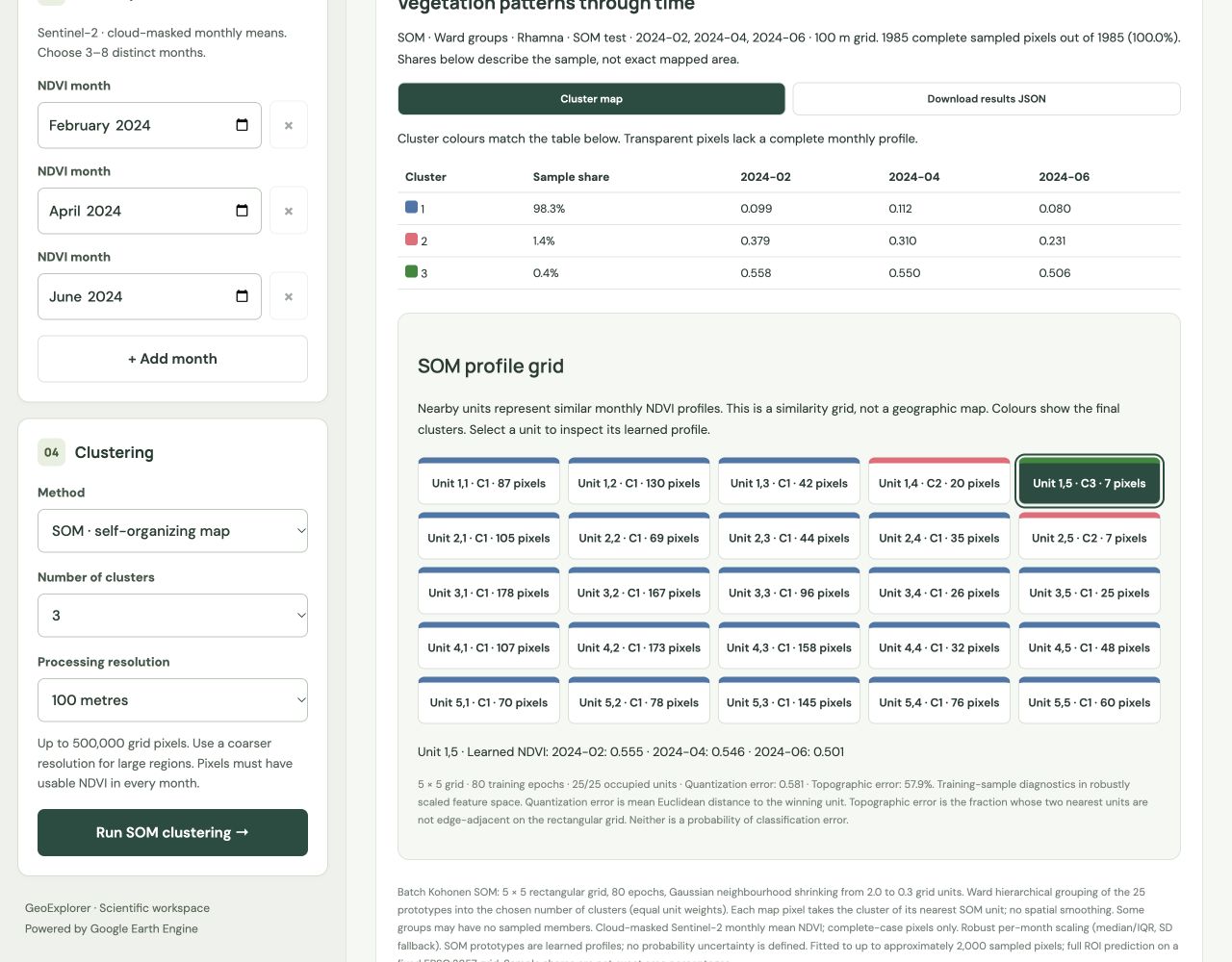
Practical use: inspect the grid when you want to explore gradual changes among seasonal profiles, not just a single set of class means. Click units to read their learned monthly NDVI. Quantization error describes distance to the winning prototype; topographic error measures failures of adjacency among the two closest units. Neither diagnostic is a classification-accuracy probability. Section 11 illustrates the grid controls.
8.6 Choose K and compare results responsibly
| Your purpose | Useful starting method | Key check |
|---|---|---|
| Explore overlapping groups and ambiguous assignments | Bayesian mixture | Inspect entropy and whether diagonal components describe the profiles plausibly. |
| Explain groups through observed examples | PAM | Inspect medoids, the 600-profile fitting cap and seed stability. |
| Use medoids with repeated small fitting samples | CLARA | Check sensitivity to sampling and possible omission of rare profiles. |
| Explore a continuum of seasonal profiles | SOM | Inspect neighbouring units, occupancy, quantization and topographic error. |
There is no universally correct K. Increasing K can divide a broad seasonal pattern into finer groups, including noise or sampling artefacts. Compare several plausible values within 2-8, looking for interpretable profiles, sufficient membership and stable spatial patterns. The current dashboard does not automatically select K or report a silhouette, BIC or predictive-validation optimum.
- Keep the ROI, dates, resolution and K fixed for a method comparison. Export each result before starting another.
- Inspect the complete-sample fraction and missing-data footprint before comparing coloured areas.
- Compare seasonal profiles, then run stability with the same list of 3-8 seeds for each method. The built-in stability comparison repeats one method; it does not calculate agreement between different methods.
- Treat class numbers and colours as arbitrary across separate fits. The stability tool matches labels within its comparison, but independent method runs are not automatically aligned.
- Validate any proposed crop, habitat or management interpretation against independent observations. Use spatially and temporally appropriate validation rather than only nearby pixels from the fitting area.
For reproducibility, retain dataset ID, ROI, selected months, nominal resolution, method, K, seed list, complete-sample counts, model details and the downloaded JSON. Sample shares are not exact mapped area. Stability measures agreement under repeated sampling/fitting, not classification truth; the adjusted Rand index corrects agreement for chance [13].
Back to contents ↑9. Read Bayesian uncertainty
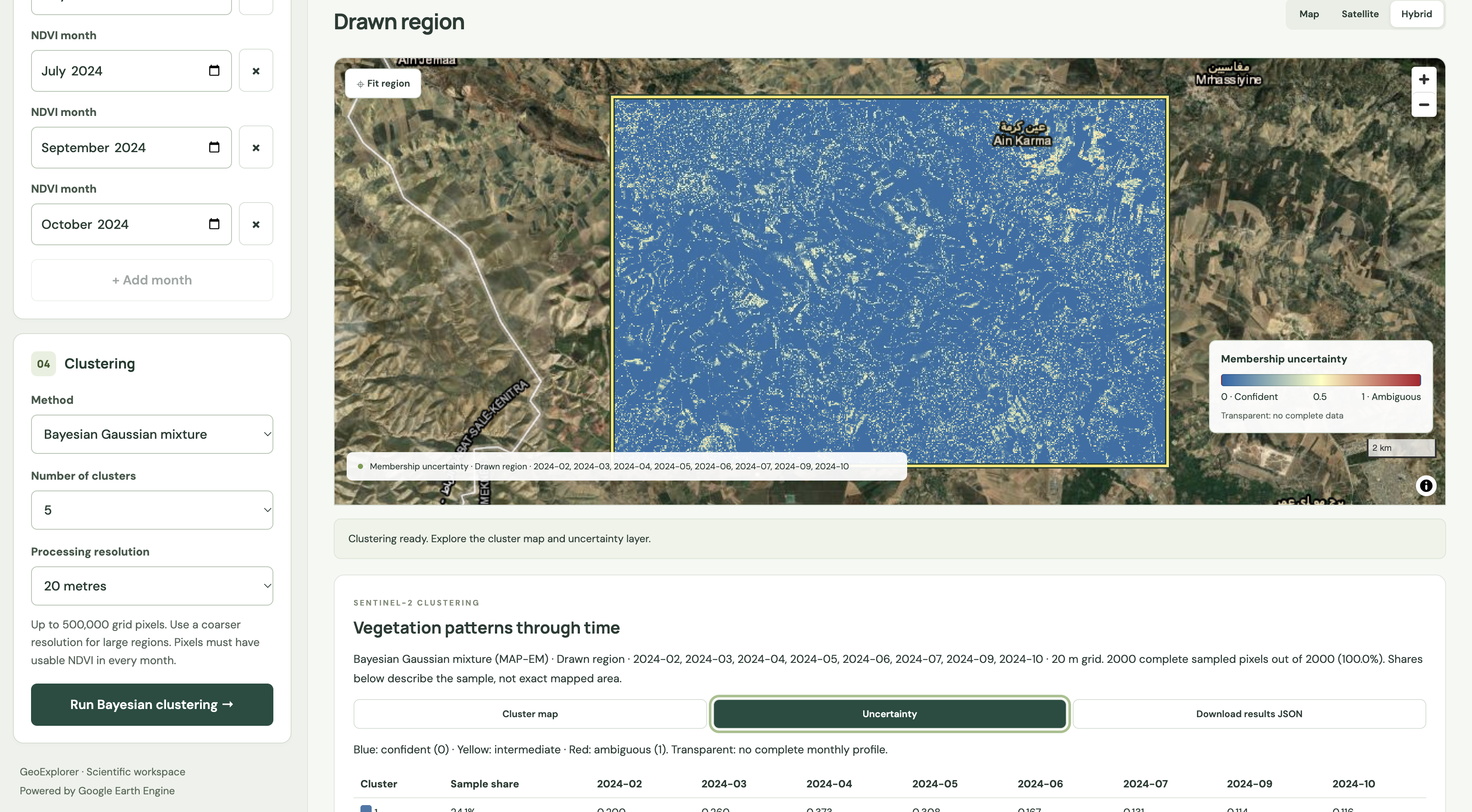
After a Bayesian run, select Uncertainty next to Cluster map. This shows normalized membership entropy: how concentrated or spread the fitted probabilities are across clusters for each complete pixel.
| Legend | Interpretation |
|---|---|
| 0 · Blue · Confident | Membership is strongly concentrated in one fitted cluster. |
| Around 0.5 · Yellow | Intermediate ambiguity under this model. |
| 1 · Red · Ambiguous | Membership is spread evenly across the fitted clusters. |
| Transparent | No complete monthly NDVI profile; not a confident assignment. |
Use uncertainty to locate transition profiles or pixels poorly separated by the chosen dates. Inspect their surroundings and compare different dates or cluster counts before drawing conclusions.
10. Test stability with your own seeds
- Run clustering once, then scroll to Stability analysis below its profiles.
- Enter 3-8 distinct whole-number seeds between 0 and 2147483647, separated by commas; for example 42, 137, 271.
- Select Check stability. The button reflects the number of valid seeds. Up to eight independent runs are supported for all four methods.
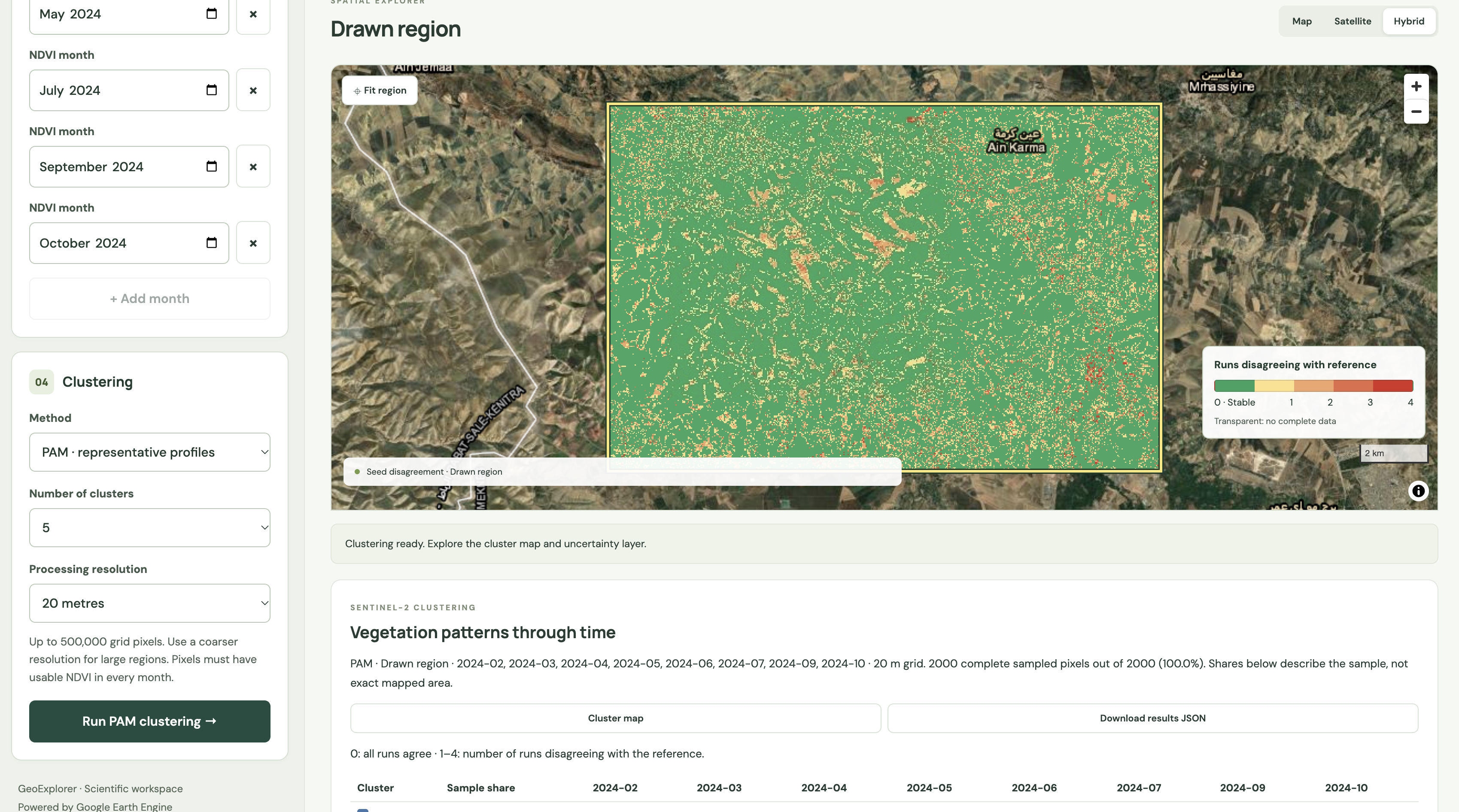
- Read mean ARI, cells changed in at least one run and the pairwise table. Select an aligned run or Disagreement map.
- Download stability JSON to retain the seeds, comparisons, label mappings and evaluation-grid settings.
Each repeat samples and fits independently using the original result's ROI, months, method, resolution and number of clusters. The comparison uses common valid cells on an equal-area grid, coarsened when necessary to limit computation. It need not use the same cell size as the displayed clustering grid.
| Result | Meaning |
|---|---|
| Adjusted Rand index (ARI) | 1 means identical grouping, allowing for label names; near 0 is chance-level agreement; negative values are possible. It is not an accuracy score. |
| Changed cells (%) | Proportion of comparison cells with different labels after one-to-one matching. |
| Central reference | The run with the highest mean pairwise ARI, used to align the colours. |
| Disagreement map | Number of runs disagreeing with the reference at each cell: 0 through N-1 for N runs. |
11. Explore the SOM profile grid
Choose SOM · self-organizing map in the clustering method menu. After the result, scroll to SOM profile grid. This is a similarity grid of learned profiles, not a geographic map of the ROI.
- Inspect the 25 units arranged as a 5 × 5 grid. Their colours identify the final grouped clusters.
- Select a unit to display its learned NDVI values for each selected month.
- Read its sampled pixel count. A learned unit can have no sampled members; it still belongs to the trained model.
- Compare units with contrasting seasonal profiles, then return to the geographic cluster map to interpret where those groups occur.
The implementation trains for 80 batch epochs with a shrinking Gaussian neighbourhood, then applies Ward grouping to all 25 prototypes. Geographic pixels are assigned to their nearest learned unit and inherit its final group. The requested number of groups does not guarantee every group has sampled members.
| Diagnostic | Meaning |
|---|---|
| Quantization error | Mean Euclidean distance from sampled profiles to their best-matching unit in scaled input space. |
| Topographic error | Fraction of sampled profiles whose two closest units are not edge-adjacent on the grid. |
| Occupied units | Units receiving at least one complete sampled pixel, out of 25. |
12. Collaborator access and usage
For invited collaborators
Use the collaborator password shared by the owner. You can analyse data but cannot open the owner management page. Keep the password private and ask the owner for a replacement if it no longer works. Signing in starts a session; it is not a named personal account.
For the owner
- Open Manage access in the header while signed in with owner access.
- Enable collaborator access and generate or set a collaborator password. Share that password, not your owner password.
- Reset the collaborator password when it should no longer be used, or disable collaborator access. Existing collaborator sessions are revoked on subsequent requests.
- Use App usage to inspect accepted and unsuccessful requests, recent activity and current quota reservations.
Usage summaries cover the last 30 calendar days in UTC; recent activity shows up to 100 events and refreshes every 30 seconds while visible. Shared passwords identify anonymous sessions, not individual people. An accepted batch submission is not evidence that its export has finished. Usage counts are not a billing report.
| Current limit | Scope |
|---|---|
| 100 / 20 per hour | Owner / shared collaborator map, clustering and stability request allowance. |
| 100 / 10 batch reservations per 24 hours | Owner / shared collaborator allowance, tracked separately over a rolling 24 hours; one active export at a time across all users. |
| 360 months | Maximum time-series retrieval length. |
| 25 million cells per month | Time-series processing limit; larger areas need coarser resolution. |
| 500,000 cells | Clustering ROI/grid limit; a smaller ROI or coarser resolution may be required. |
Failed requests can still consume reservations. Sessions normally expire after eight hours and can end after a service update. Private batch results are retained for 30 days, but you should export important outputs locally. The usage log does not record passwords, IP addresses or ROI coordinates.
Back to contents ↑13. Troubleshooting
| Message or symptom | What to do |
|---|---|
| RUNNING or queued for several minutes | Wait and read the current status. Large regions, fine grids and long periods take more work. For a future run, reduce the area or period, or choose a coarser resolution. |
| CANCEL_REQUESTED | Cancellation has been requested but not confirmed. Wait; repeated requests do not make Earth Engine stop faster. |
| Finish or cancel the current batch export | An earlier task still occupies the slot. Let the dashboard reconnect, then wait or cancel once. Restarting the browser does not remove the task. |
| Retrieved X of Y months directly | A direct-retrieval fallback is reporting progress. This is not a completed result until all required work finishes. |
| Too many concurrent aggregations | Earth Engine rejected overlapping reductions. Let active work settle; retry with a smaller request. Persistent failures should be reported to the owner. |
| Map limit reached | Wait for reservations to leave the rolling one-hour window. Reloading does not reset the quota. |
| No scenes / no complete pixels | Try other historical months. Cloud masking or geographic coverage can leave no usable data. For clustering, every month must be valid. |
| Region too large at this resolution | Use the minimum resolution suggested by the message or draw a smaller ROI. |
| Layer ready, but map looks blank | Check ROI, month, dataset, opacity and masking. Fit region. A successful layer request does not guarantee every tile contains valid pixels. |
| Sign-in required / backend busy | Sign in again if the session ended. For a busy response, wait for current work to settle and retry rather than repeatedly clicking. |
Before reporting a problem
Record the exact message, time, selected dataset, ROI name or bounds, dates, resolution and method. Include a screenshot. Never include the access password. If examining Earth Engine Task Manager, expand the task for its actual state; a retained task entry is not necessarily an active task.
Back to contents ↑14. Glossary, sources and credits
| Term | Meaning |
|---|---|
| ROI | Region of interest: a rectangle or selected country geometry. |
| NDVI | Normalized Difference Vegetation Index, a dimensionless spectral index. |
| Complete profile | A pixel with valid NDVI in every selected month. |
| Medoid | An observed sampled profile selected as a representative. |
| IQR | Interquartile range: the 75th percentile minus the 25th percentile. |
| Seed | Integer controlling random sampling and initialization. |
| Entropy | A measure of how spread the fitted cluster probabilities are. |
| ARI | Adjusted Rand index, measuring agreement between groupings. |
| No data | Unavailable or masked values; excluded rather than treated as zero. |
Source documentation
- [1] MODIS MOD13Q1 v6.1 - NASA LP DAAC / Earth Engine catalogue
- [2] Sentinel-2 harmonized surface reflectance - Copernicus / Earth Engine catalogue
- [3] CHIRPS daily precipitation - Climate Hazards Center / Earth Engine catalogue
- [4] Earth Engine processing environments and task lifecycle
- [16] Google Earth Engine. About Google Earth Engine: hosted geospatial data and cloud computation.
Interface instructions and method settings were checked against the GeoExplorer web implementation and its current deployment files on 18 October 2026. Data-provider documentation governs source coverage and product interpretation. The manual documents the hosted dashboard, not the installation of the separate macOS application.
Scientific references
- [5] Atzberger, C. (2013). Advances in Remote Sensing of Agriculture: Context Description, Existing Operational Monitoring Systems and Major Information Needs. Remote Sensing, 5(2), 949-981. DOI: 10.3390/rs5020949.
- [6] Pettorelli, N., Vik, J. O., Mysterud, A., Gaillard, J.-M., Tucker, C. J., & Stenseth, N. C. (2005). Using the satellite-derived NDVI to assess ecological responses to environmental change. Trends in Ecology & Evolution, 20(9), 503-510. DOI: 10.1016/j.tree.2005.05.011.
- [7] Bishop, C. M. (2006). Pattern Recognition and Machine Learning. Springer, Chapter 9 (mixture models and EM). This provides the general framework; GeoExplorer-specific priors and limits are documented in section 8.
- [8] Kaufman, L., & Rousseeuw, P. J. (1990). Finding Groups in Data: An Introduction to Cluster Analysis. Wiley, Chapter 2: Partitioning Around Medoids, pp. 68-125. DOI: 10.1002/9780470316801.ch2.
- [9] Kaufman, L., & Rousseeuw, P. J. (1990). Finding Groups in Data: An Introduction to Cluster Analysis. Wiley, Chapter 3: Clustering Large Applications, pp. 126-163. DOI: 10.1002/9780470316801.ch3.
- [10] Schubert, E., & Rousseeuw, P. J. (2019). Faster k-Medoids Clustering: Improving the PAM, CLARA, and CLARANS Algorithms. SISAP 2019, pp. 171-187. DOI: 10.1007/978-3-030-32047-8_16.
- [11] Kohonen, T. (1990). The self-organizing map. Proceedings of the IEEE, 78(9), 1464-1480. DOI: 10.1109/5.58325.
- [12] Ward, J. H., Jr. (1963). Hierarchical Grouping to Optimize an Objective Function. Journal of the American Statistical Association, 58(301), 236-244. DOI: 10.1080/01621459.1963.10500845.
- [13] Hubert, L., & Arabie, P. (1985). Comparing partitions. Journal of Classification, 2, 193-218. DOI: 10.1007/BF01908075.
Yaqui Valley background
- [14] CIMMYT (2018). The Norman E. Borlaug Experiment Station, Ciudad Obregón. Cereals 2018, Global Wheat Program Visitors’ Week background.
- [15] CIMMYT (2014). Borlaug Summit on Wheat for Food Security: Ciudad Obregón, Mexico.
Credits
Bruno Gérard - Center for Applied System Analysis, College of Agriculture and Environmental Sciences, UM6P
Data: NASA LP DAAC MODIS, Copernicus Sentinel-2 and Climate Hazards Center CHIRPS. Cloud processing: Google Earth Engine. Basemap providers are credited on the maps. Include the relevant dataset references when sharing analyses.
Back to contents ↑